Главная
-
Блог & Новости
-
Сенсорный экран Raspberry Pi MIPI DSI не работает? Полное руководство по устранению неполадок.
Сенсорный экран Raspberry Pi MIPI DSI не работает? Полное руководство по устранению неполадок.
2026-05-29
00:00
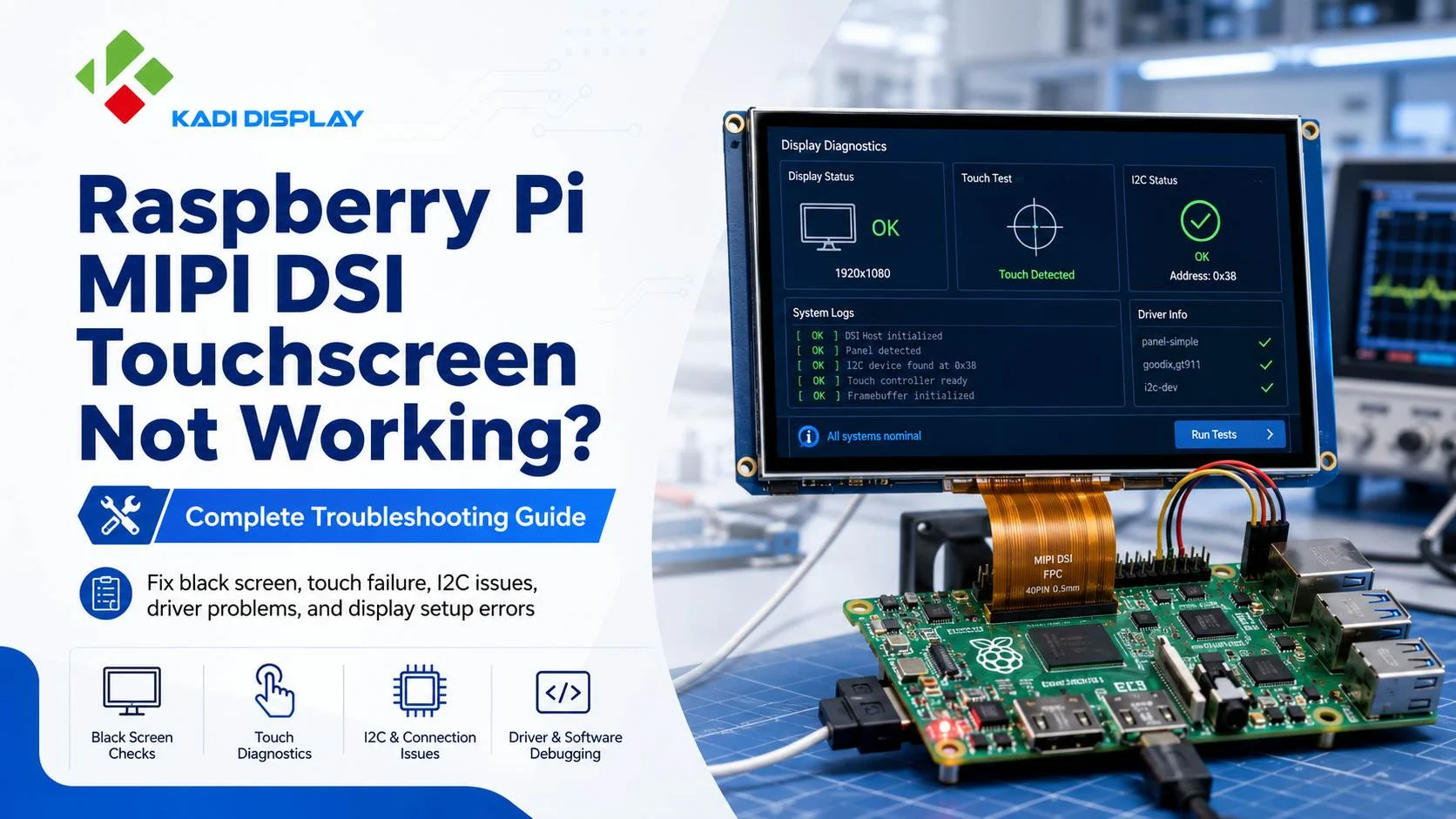
А Сенсорный экран Raspberry Pi MIPI DSI не работает. Проблема может проявляться по-разному. Экран может оставаться чёрным после загрузки. Подсветка может включиться, но изображение не появится. В других случаях дисплей работает, но сенсорная панель не реагирует. Некоторые пользователи также наблюдают неправильные координаты касания, мерцание изображения или нестабильное поведение при запуске.
Для проектов B2B эти проблемы выходят за рамки простых лабораторных задач. Они могут замедлить тестирование прототипов, отложить разработку корпуса или повлиять на пилотное производство. Компактный сенсорный экран MIPI DSI часто выбирают для промышленных портативных терминалов, интеллектуальных панелей управления, медицинских приборов, устройств самообслуживания и встроенных систем Linux. Однако MIPI DSI — это не простой интерфейс «подключи и работай». Панель дисплея, распиновка FPC, схема подсветки, контроллер сенсорного экрана I2C, драйвер и настройки дерева устройств должны работать согласованно.
Прежде чем приступать к более глубокому устранению неполадок, следует сначала проверить базовое подключение. Инструкции по первоначальной настройке см. в соответствующем разделе. Как подключить ЖК-дисплей MIPI DSI к Raspberry PiДанное руководство поможет убедиться в правильности подготовки кабеля, интерфейса дисплея и начальной конфигурации.
Перед изменением программного обеспечения проверьте аппаратную часть.
Направление кабеля FPC и контакт разъема
Одна из наиболее распространенных причин неисправности дисплея MIPI DSI на Raspberry Pi — неправильно вставленный гибкий кабель (FPC). Контактная сторона должна быть обращена в правильном направлении. Фиксатор разъема также должен удерживать кабель ровно и равномерно. Кабель, слегка наклоненный, может выглядеть подключенным, но одна из сигнальных линий может быть уже разомкнута.
Это особенно важно при проектировании коммерческих изделий. Кабель, работающий во время тестирования на рабочем столе, может выйти из строя внутри готового корпуса. Многократная сборка, сильные изгибы, вибрация или нагрев могут привести к ослаблению контакта. Для серийного производства необходимо заранее проверить длину гибкого печатного кабеля, расположение разъема, расстояние для изгиба и направление сборки.
Напряжение питания, подсветки и логическое напряжение
Полностью тёмный экран часто указывает на отсутствие питания, неправильное напряжение или проблему с подсветкой. Экран с подсветкой, но без изображения, обычно означает, что питание есть, но сигнал дисплея или настройки программного обеспечения некорректны. Некоторые дисплеи MIPI DSI используют отдельные линии питания для логики дисплея и светодиодной подсветки. Для других требуется плата-адаптер для стабилизации напряжения или управления подсветкой.
Компания Kadi Display предлагает модули дисплея для Raspberry Pi, предназначенные для компактных встраиваемых и промышленных приложений. Линейка дисплеев для Raspberry Pi включает в себя TFT- и сенсорные модули, обеспечивающие вывод видеосигнала, сенсорное управление и питание через единый гибкий кабель (FPC). Такая конструкция позволяет уменьшить количество проводов и сделать внутреннюю компоновку готовых устройств более аккуратной.
Как устранить проблему с черным экраном на дисплее Raspberry Pi MIPI DSI
Подтвердите разрешение, время и номер полосы DSI.
Проблема с черным экраном на дисплее MIPI DSI часто связана с несоответствием программного обеспечения, а не с повреждением экрана. Разрешение — лишь один из параметров. Системе также необходимы правильный номер линии DSI, время обновления, последовательность инициализации и драйвер панели.
Например, в линейке дисплеев Kadi Display для Raspberry Pi есть 7-дюймовый IPS MIPI DSI TFT LCD-дисплей с разрешением 1024×600, яркостью 300 нит и сенсорным управлением I2C. Также доступны 7-дюймовые и 5-дюймовые MIPI DSI-дисплеи с разрешением 800×480 и 800×480, с более высокой яркостью. Эти детали важны, поскольку драйвер, предназначенный для одной панели, может некорректно запускать другую панель, даже если обе используют один и тот же общий интерфейс MIPI DSI.
Просмотрите наложение дерева устройств.
Device Tree сообщает системе Linux, как подключено оборудование. Если накладка отсутствует, устарела или написана для другой панели, операционная система может загрузиться в обычном режиме, но дисплей останется пустым. Для пользовательского проекта сенсорного экрана на Raspberry Pi инженерам следует проверить драйвер панели, контакт сброса, контакт включения, управление подсветкой, настройки хоста DSI и параметры синхронизации.
Практический подход заключается в том, чтобы сначала проверить изображение на дисплее. Сенсорный ввод следует проверять после того, как изображение стабилизируется. Такой порядок позволяет упростить отладку. В противном случае две разные проблемы могут смешаться.
Как устранить проблему с неработающим сенсорным экраном или необнаруженным интерфейсом I2C
Определите сенсорный интерфейс
Если изображение на ЖК-экране появляется, но сенсорный экран Raspberry Pi не работает, проблема обычно связана с сенсорным интерфейсом. Многие компактные сенсорные экраны MIPI DSI используют интерфейс I2C. Система должна обнаружить контроллер сенсорного экрана, загрузить соответствующий драйвер и правильно назначить контакты прерывания и сброса.
Некоторые модели дисплеев Kadi Display для Raspberry Pi используют сенсорный интерфейс I2C. В некоторых моделях с высокой яркостью также применяется оптическое соединение OCA, что улучшает видимость и стабильность конструкции. Для закупочных групп и инженеров проекта эту информацию следует подтвердить до начала трассировки печатной платы, планирования микропрограммного обеспечения и проектирования механических компонентов.
Исправление неправильного положения касания или поворота
Иногда сенсорная панель не совсем не работает. Вместо этого точка касания смещается, переворачивается или поворачивается. Палец движется в одном направлении, а курсор — в другом. В этом случае и дисплей, и сенсорный контроллер могут быть уже активны. Часто проблема заключается в сопоставлении координат.
Поворот дисплея, калибровка сенсорного экрана и окончательное направление установки должны совпадать. Это особенно важно для вертикальных панелей управления, портативных устройств и оборудования с корпусом нестандартной формы. Экран, работающий в альбомном режиме во время тестирования, может потребовать других настроек сенсорного экрана при установке в портретном режиме.
Предотвращение аналогичных проблем в B2B-производстве
Образец дисплея, который работает один раз на отладочной плате, еще не готов к массовому производству. Промышленным покупателям следует учитывать долгосрочные поставки, яркость, рабочую температуру, оптическое соединение, защитное стекло, износостойкость сенсорного экрана, трассировку гибких печатных плат и программную поддержку.
Для оборудования, используемого в помещении, достаточно яркости 300 нит. Для наружных терминалов, панелей управления, обращенных к солнечному свету, или портативных полевых приборов может потребоваться яркость 800 или 1000 нит. Компания Kadi Display предлагает... Параметры дисплея Raspberry Pi MIPI DSI Например, 7-дюймовая модель с разрешением 800×480, яркостью 800 нит, оптическим соединением OCA, сенсорным экраном I2C и рабочей температурой от -20°C до 70°C. Также доступна 5-дюймовая модель с разрешением 800×480, яркостью 1000 нит и оптическим соединением OCA для использования с Raspberry Pi.
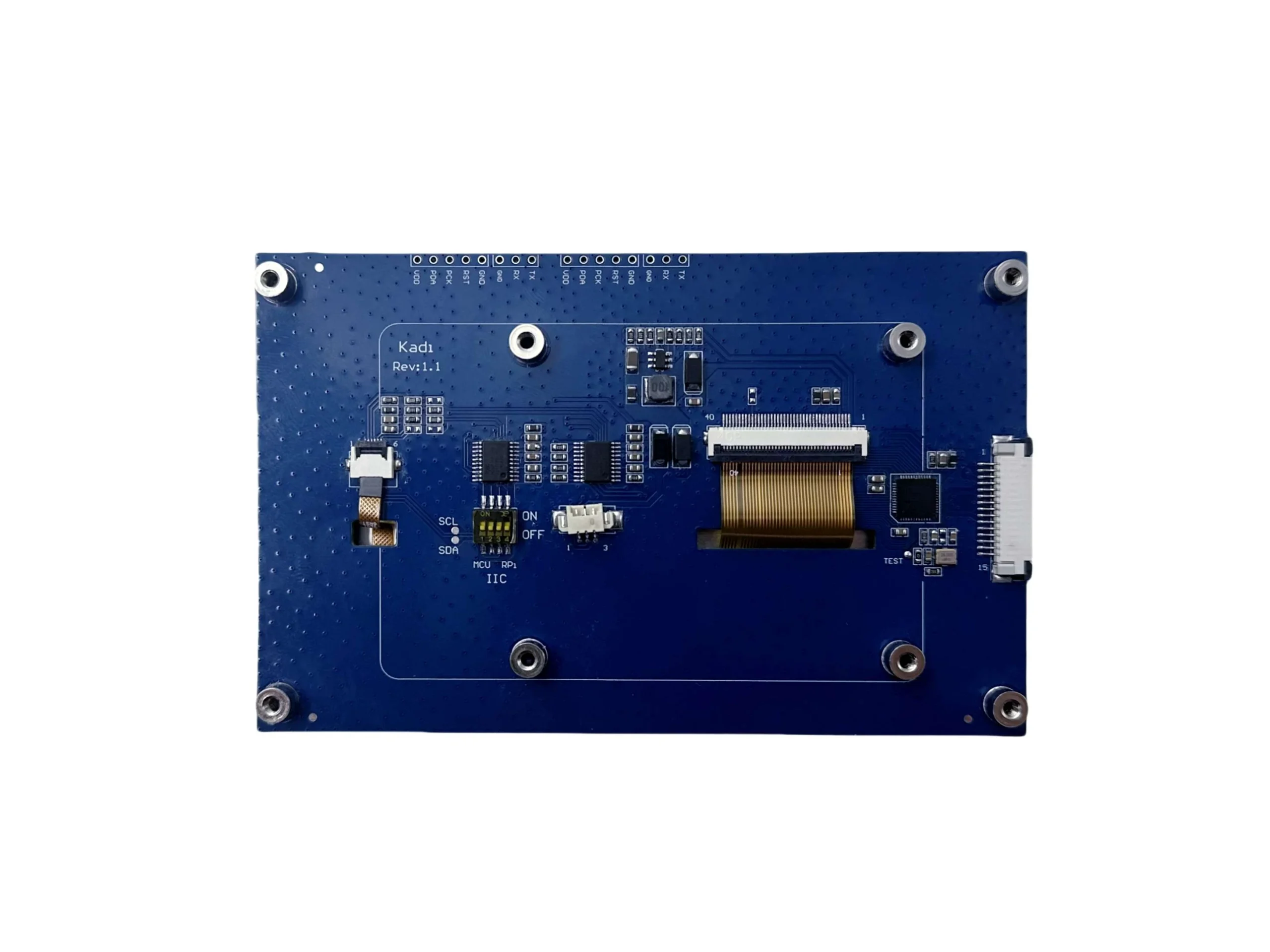
Эти спецификации предоставляют инженерам и командам по закупкам более понятный способ оценить, подходит ли дисплей для промышленного использования, а не только для краткосрочного тестирования.
О компании Shenzhen Kadi Display Technology., Ltd.
Shenzhen Kadi Display Technology., Ltd. Компания является производителем дисплеев, базирующимся в Шэньчжэне, Китай. Она специализируется на решениях для промышленного и медицинского применения, обладая более чем 20-летним опытом разработок. Производственный цех занимает более 10 000 квадратных метров, а компания имеет сертификаты системы качества, включая ISO9001, ISO14001, ISO13485 и IATF16949.
Ценность Kadi Display для B2B-клиентов заключается в возможностях заводского производства и индивидуальной инженерной поддержке. Для проектов с сенсорным экраном на базе Raspberry Pi MIPI DSI это может включать в себя выбор яркости, оптическую сварку, разработку нестандартных гибких печатных плат, согласование интерфейсов, защитное стекло, требования к корпусу, интеграцию сенсорного экрана и поддержку OEM/ODM-проектов. Это особенно полезно, когда стандартный модуль дисплея не подходит по размерам корпуса, целевым показателям производительности или производственным планам.
Вывод
При возникновении проблемы с неработающим сенсорным экраном MIPI DSI на Raspberry Pi следует проверить следующие пункты в определённой последовательности. Начните с кабеля FPC, контактов разъёма, источника питания и подсветки. Затем перейдите к разрешению, номеру линий DSI, драйверу панели, наложению дерева устройств, обнаружению касания по I2C и отображению координат касания.
В проектах B2B конечная цель состоит не только в том, чтобы исправить один экземпляр дисплея. Более масштабная задача — создать стабильное, воспроизводимое решение для отображения информации на реальных устройствах. Подходящий сенсорный экран Raspberry Pi MIPI DSI должен соответствовать электрической схеме, механической структуре, программной среде, условиям эксплуатации и плану поставок. Благодаря опыту в промышленном производстве дисплеев и поддержке индивидуальных проектов, Kadi Display помогает превращать прототипы дисплеев в готовые к производству решения.
Часто задаваемые вопросы
В1:Почему сенсорный экран Raspberry Pi MIPI DSI не работает после включения?
A1: Сенсорный экран Raspberry Pi MIPI DSI может перестать работать после запуска из-за неправильно подключенного кабеля FPC, нестабильного источника питания, отсутствия драйвера панели, неправильного наложения дерева устройств или необнаруженного контроллера сенсорного экрана I2C. Перед изменением программного обеспечения следует проверить подключение оборудования.
В2:Почему на дисплее Raspberry Pi MIPI DSI есть подсветка, но нет изображения?
A2: Отсутствие подсветки обычно означает, что дисплей включен, но сигнал MIPI DSI или конфигурация программного обеспечения некорректны. Следует проверить номер линии DSI, синхронизацию панели, последовательность инициализации и драйвер дисплея.
Q3:Как исправить проблему с неработающим сенсорным экраном I2C на Raspberry Pi с интерфейсом MIPI DSI?
A3: Во-первых, убедитесь, что сенсорная панель использует I2C. Затем проверьте настройки выводов SDA, SCL, сброса и прерывания. Система также должна загрузить правильный драйвер контроллера сенсорного экрана. Если изображение отображается, но сенсорный экран не работает, проблема, вероятно, связана с схемой сенсорного экрана или драйвером.
Q4:Может ли любой сенсорный экран MIPI DSI работать с Raspberry Pi?
A4: Нет. Сенсорный экран MIPI DSI должен соответствовать аппаратному интерфейсу Raspberry Pi, распиновке, номеру линий DSI, синхронизации дисплея, микросхеме драйвера, контроллеру сенсорного экрана и программной конфигурации. Для некоторых проектов может потребоваться специальная плата-адаптер или специальное решение для отображения.
В5:В каких случаях компании следует выбирать дисплей MIPI DSI, разработанный специально для Raspberry Pi?
A5: Специально разработанный дисплей MIPI DSI для Raspberry Pi подходит для проектов, требующих высокой яркости, оптического склеивания, специальной разводки гибких печатных плат, защитного стекла на заказ, широкого диапазона рабочих температур, стабильного серийного производства или длительных поставок. Он также полезен, когда дисплей должен помещаться в определенный корпус или использоваться в промышленных условиях.
Предыдущий
Как выбрать высокояркий MIPI DSI-дисплей для промышленного применения на Raspberry Pi
Следующая
Как подключить емкостную сенсорную панель GT911 к LVGL на ESP32-S3
Оставить комментарий

Последние блоги и новости
- Industrial LCD EOL: What Happens from Pre-Announcement to Replacement Mass Production?
- Electronic Component Obsolescence Management for Industrial Displays: An OEM Guide
- How to Develop a Production Ready Custom Display Assembly TFT Module Touch Cover Glass FPC Bonding and Mounting
- 15 Pin vs 22 Pin Raspberry Pi DSI Connectors Cable Pinout and Compatibility
- Native MIPI DSI vs LVDS or HDMI Bridge: An OEM Display Architecture Decision Guide
Блог и новости
-
 TN против IPS2024-7-9
 -
TN против IPS2024-7-9