
Accueil
-
Blog & Actualités
-
HDMI Monitor Works on a Laptop but Not an SBC: EDID, HPD, and Timing Checks
HDMI Monitor Works on a Laptop but Not an SBC: EDID, HPD, and Timing Checks
2026-09-24
00:00
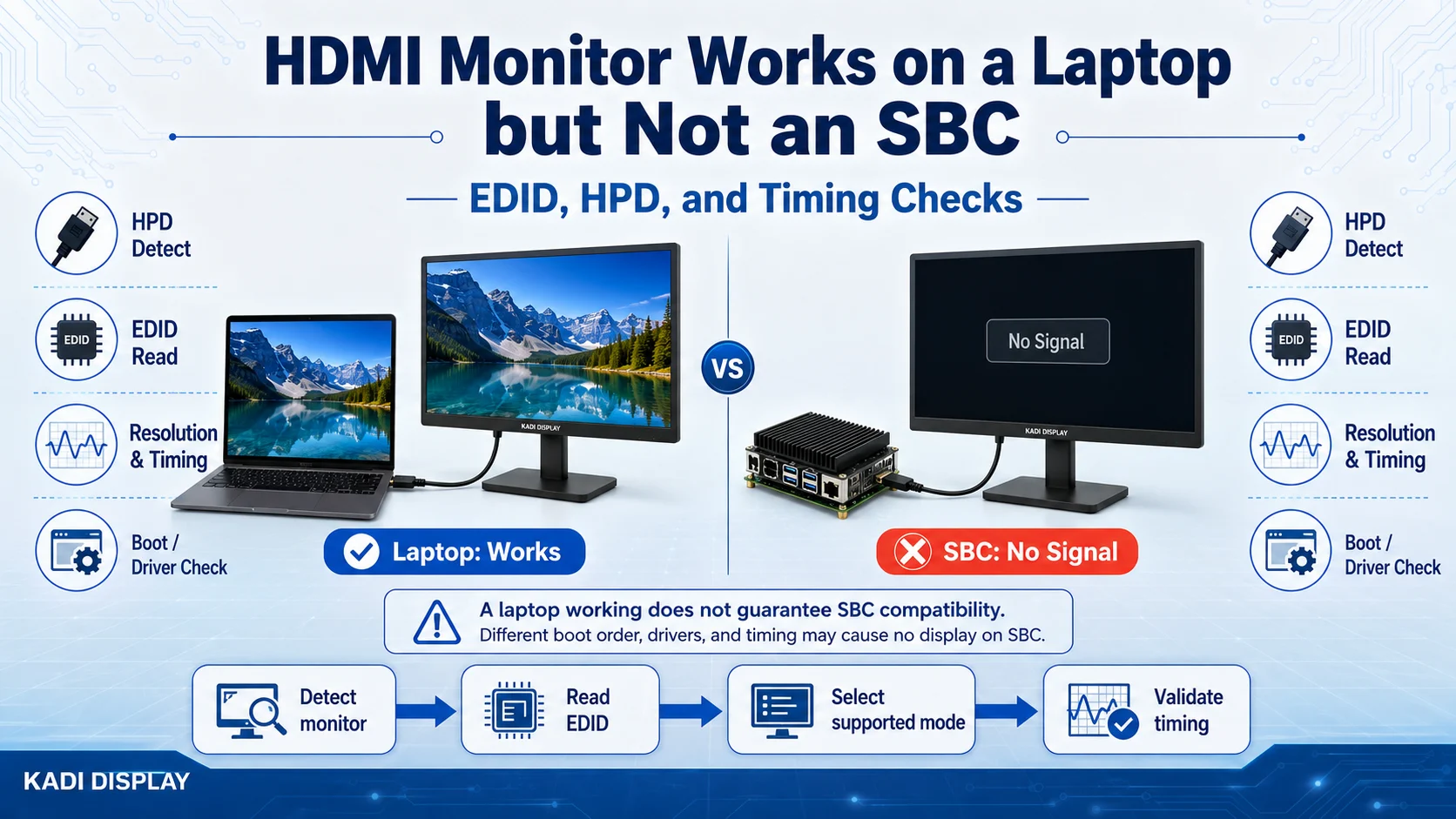
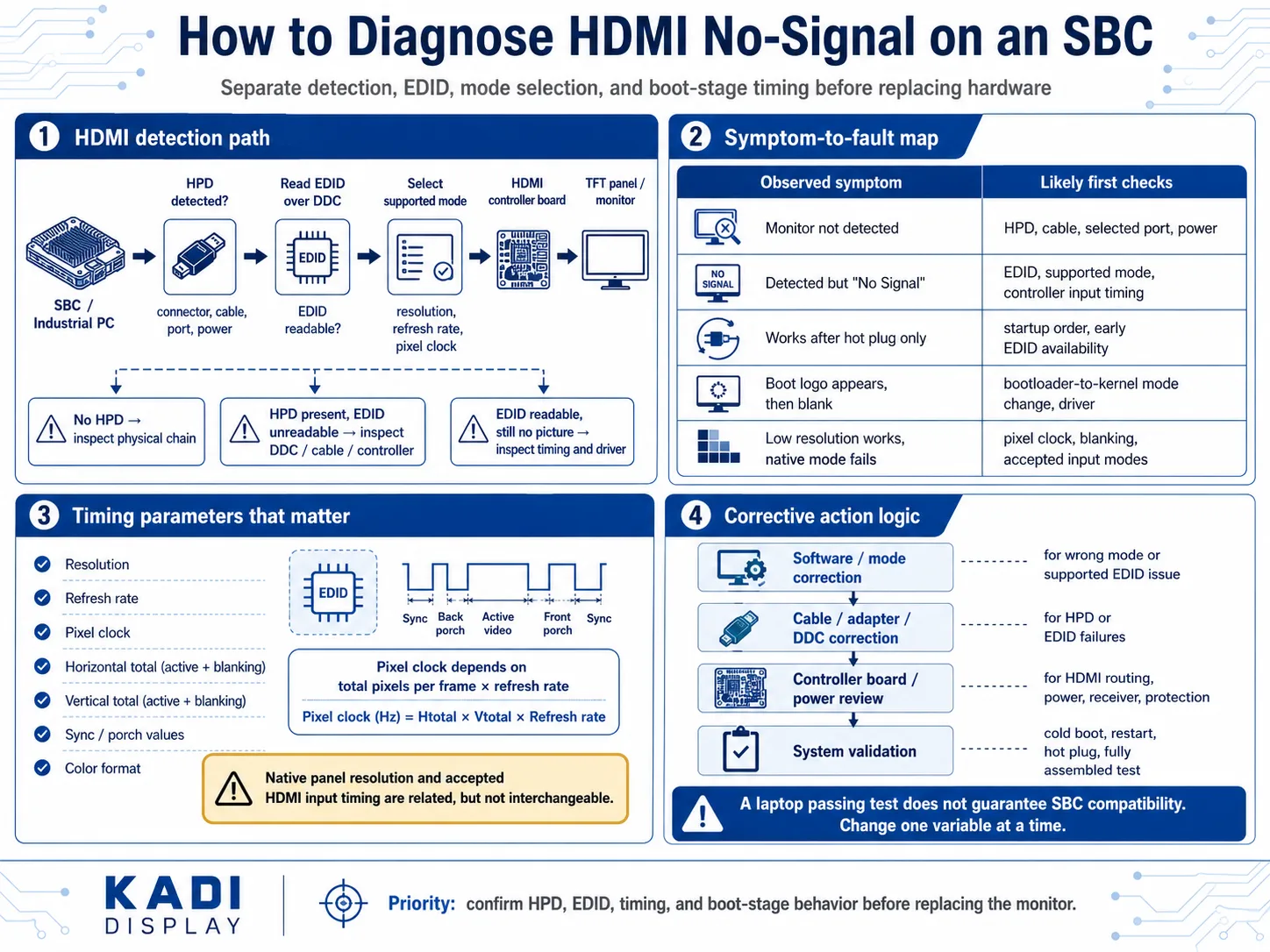
If an HDMI monitor works on a laptop but shows no signal on an SBC or industrial PC, the monitor is not necessarily defective. The embedded host may fail to detect Hot Plug Detect (HPD), read the EDID, select a supported video mode, or maintain the link during startup. Begin by determining whether the host detects the monitor at all or detects it but sends an unusable signal. Then trace the path from HPD and EDID through resolution, timing, HDMI output, controller board, and TFT panel.
What Does a Successful Laptop Test Actually Prove?
A successful laptop test confirms that the monitor can power on and display at least one HDMI mode negotiated with that laptop. It also provides a known-good source for comparison.
It does not prove that an SBC supports the same resolution, refresh rate, pixel clock, blanking intervals, color format, or startup sequence. A laptop may read the EDID correctly and choose a conservative mode, while an embedded host may use a fixed mode, ignore the preferred mode, or initialize HDMI before the display controller is ready.
Record the exact symptom:
-
The host does not detect the monitor.
-
The monitor is detected but reports “No Signal.”
-
A boot logo appears, followed by a blank screen.
-
The display works only after reconnecting HDMI.
-
A lower resolution works, but the native resolution fails.
-
Video works, but USB or I2C touch does not.
These symptoms lead to different branches of the fault tree.
Quick Decision: Is the Monitor Undetected or Detected Without a Picture?
First, use the host platform’s supported diagnostic tools to check connector status, system logs, available display modes, and EDID data.
If the host does not detect a connected display, investigate HPD, connector selection, cable continuity, adapters, controller-board power, and port configuration. Changing the desktop resolution is unlikely to help before detection succeeds.
If HPD is present but the EDID cannot be read, focus on DDC communication, cable or adapter quality, controller-board power, and the HDMI receiver.
If the EDID is readable and a mode is selected, compare that mode with the monitor controller’s accepted HDMI input timings. Detection does not prove that the transmitted signal is usable.
Also identify when the image disappears. A boot logo that vanishes when Linux loads suggests a driver or mode change. A display that works after hot plugging but not from a cold boot points toward startup order, early EDID availability, or a bootloader-to-kernel transition.
Build the HDMI No-Signal Fault Tree
HDMI compatibility should be checked at four separate levels.
Physical Connection and Power
Confirm the HDMI connector type, cable, adapters, selected input, connector retention, and controller-board power. Inspect whether the enclosure bends the cable, loads the port, or prevents full insertion.
A matching HDMI connector proves physical fit only. It does not confirm signal capability, supported modes, software behavior, or complete-system compatibility.
Interface, EDID, and Timing
Check whether the source receives HPD and can read the display’s EDID over DDC. Compare the EDID obtained from the laptop with the data read by the SBC.
Next, examine the selected resolution, refresh rate, pixel clock, horizontal and vertical totals, blanking, and synchronization. This is particularly important for bar-type displays and other nonstandard aspect ratios. The TFT panel’s active resolution and the controller board’s accepted HDMI input modes are related specifications, but they are not interchangeable.
Driver and System Support
Check the bootloader, BIOS or UEFI where applicable, kernel display driver, DRM/KMS configuration, Device Tree, graphics stack, and recent software changes. Use documentation for the exact host and operating-system version because display configuration procedures vary across platforms and releases.
Touch must be validated separately. HDMI commonly carries video, while touch may use USB or I2C.
Test EDID, Resolution, and Timing Methodically
Keep the known-good laptop, monitor, cable, and power supply available as references. Change one variable at a time and record the result.
| Test Result | Likely Fault Branch | Next Check |
|---|---|---|
| No HPD or connector detection | Port, cable, power, or HPD path | Host port status and physical chain |
| HPD present, EDID unreadable | DDC, adapter, cable, or controller board | Compare EDID access on both sources |
| EDID readable, no mode selected | Driver or configuration | Supported modes and system logs |
| Low resolution works, native mode fails | Timing, bandwidth, or controller limitation | Pixel clock and accepted input modes |
| Hot plug works, cold boot fails | Startup order or early detection | Bootloader and kernel transition |
| Boot image works, OS goes blank | Software changes the mode | Kernel and graphics configuration |
Test one conservative resolution and refresh rate explicitly supported by both the host and display controller. This is a diagnostic step, not evidence that an unsupported native mode has been fixed.
An EDID override may help isolate an EDID or mode-selection problem when the platform officially supports that procedure. It cannot repair inadequate power, damaged DDC lines, poor signal integrity, or a controller that cannot accept the requested timing.
Match the Root Cause to the Correct Fix
Common root causes include failed HPD detection, unreliable DDC communication, missing or unexpected EDID data, unsupported timing, host output limitations, boot-stage configuration changes, cable loss, controller-board restrictions, and unstable power.
Use the smallest correction supported by the evidence:
-
Correct a documented software parameter when the hardware works and the host selects the wrong mode.
-
Change the display or controller module when it cannot accept the required input timing or meet the project’s environmental and mechanical requirements.
-
Modify an internal FPC only when evidence places the failure after the HDMI controller, between that controller and the panel. A source-side EDID problem does not justify a panel FPC redesign.
-
Review the host or controller PCBA when HPD, DDC, HDMI routing, power, protection, connector placement, or receiver capability is responsible.
-
Change the structure when connector access, cable bend, retention, grounding, or enclosure strain changes the result.
After correction, repeat cold boot, restart, hot plug, application launch, and fully assembled operation. A working bench setup does not complete system validation.
For additional context on separating HDMI input from panel-side LVDS, eDP, or MIPI DSI, review the custom TFT display signal chain article.
Choose the Appropriate Display Solution Level
A standard monitor is suitable when its accepted HDMI modes, power, size, brightness, mounting, touch interface, and operating conditions match the device. The industrial HDMI monitors category provides a starting point for this architecture.
A specific product should be linked only when its published specifications fit the application. For example, the 12.1-inch 1024×768 HDMI industrial display is relevant to projects requiring that size and resolution with HDMI input and a 12V supply. Its compatibility with a particular SBC or industrial PC still requires host and system verification.
A modified module may be appropriate when the project needs a different cable, connector, touch panel, cover glass, brightness, mounting arrangement, or controller configuration. A Custom Display Assembly can combine the TFT, touch, cover glass, controller, cables, and mechanical parts under one controlled configuration.
When the requirement also includes host adaptation, power architecture, mounting, or enclosure integration, a Modular HMI Solution or Complete Display System may create a clearer integration boundary. Affichage Kadi should therefore be evaluated according to the solution level required, rather than only as a bare-panel source.
Prepare the Technical Package for an RFQ
For an HDMI display review, provide:
-
SBC, industrial PC, processor, or mainboard model
-
Operating system and firmware version
-
Required resolution and refresh rate
-
EDID dump or detected-mode list, if available
-
Current monitor or controller-board model
-
HDMI cable and adapter details
-
Power input and touch requirements
-
Mechanical drawing or installation space
-
Application and fault photos or startup video
-
Expected quantity
Conclusion
A laptop test verifies one source-display combination. An SBC or industrial PC requires separate confirmation of HPD, EDID, supported modes, complete timing, software support, and assembled-system behavior.
For a project review, contacter Kadi Display with the host platform, operating system, required resolution, EDID information, controller-board details, power input, mechanical drawing, fault images, and quantity. This information helps determine whether the next step is configuration correction, module selection, custom assembly, or a more integrated display system.
Questions fréquentes
Does Working on a Laptop Mean the Monitor Is Compatible With an SBC?
No. The sources may support different output modes, pixel clocks, drivers, firmware behavior, and startup sequences. Compatibility should be verified with the actual SBC and operating system.
Can an EDID Override Fix Every HDMI No-Signal Problem?
No. It may diagnose or work around an EDID or mode-selection issue. It does not fix power instability, cable loss, damaged DDC communication, signal-integrity problems, or unsupported controller hardware.
Why Does HDMI Work After Hot Plugging but Not at Boot?
The host may check for the monitor before the controller board is ready, or the bootloader and operating system may use different modes. Compare HPD, EDID availability, and selected timing at each boot stage.
Why Is the Monitor Detected but Still Showing No Signal?
Detection confirms part of the handshake, not valid video delivery. The selected resolution, refresh rate, pixel clock, color format, or full timing may be unsupported by the display controller.
Précédent
Pas plus
Suivant
MIPI DSI Display Works at Room Temperature but Fails After Warm-Up: A Troubleshooting Workflow
Laisser un commentaire

Derniers blogs et nouvelles
- HDMI Monitor Works on a Laptop but Not an SBC: EDID, HPD, and Timing Checks
- MIPI DSI Display Works at Room Temperature but Fails After Warm-Up: A Troubleshooting Workflow
- LCD Prototype Passed but Pilot Units Fail: A Display Integration Isolation Workflow
- LCD Controller Board Black Screen: A Safe Diagnostic Flow for EDID, Boot Order, Panel Timing, and Backlight
- VESA vs JEIDA LVDS Mapping: Evidence-Based Color Diagnosis and Release
Blog et nouvelles connexes