
Accueil
-
Blog & Actualités
-
MIPI DSI Worked Before the Linux Update but Is Black Now: Driver, Device Tree, and Kernel Checks
MIPI DSI Worked Before the Linux Update but Is Black Now: Driver, Device Tree, and Kernel Checks
2026-08-27
00:00
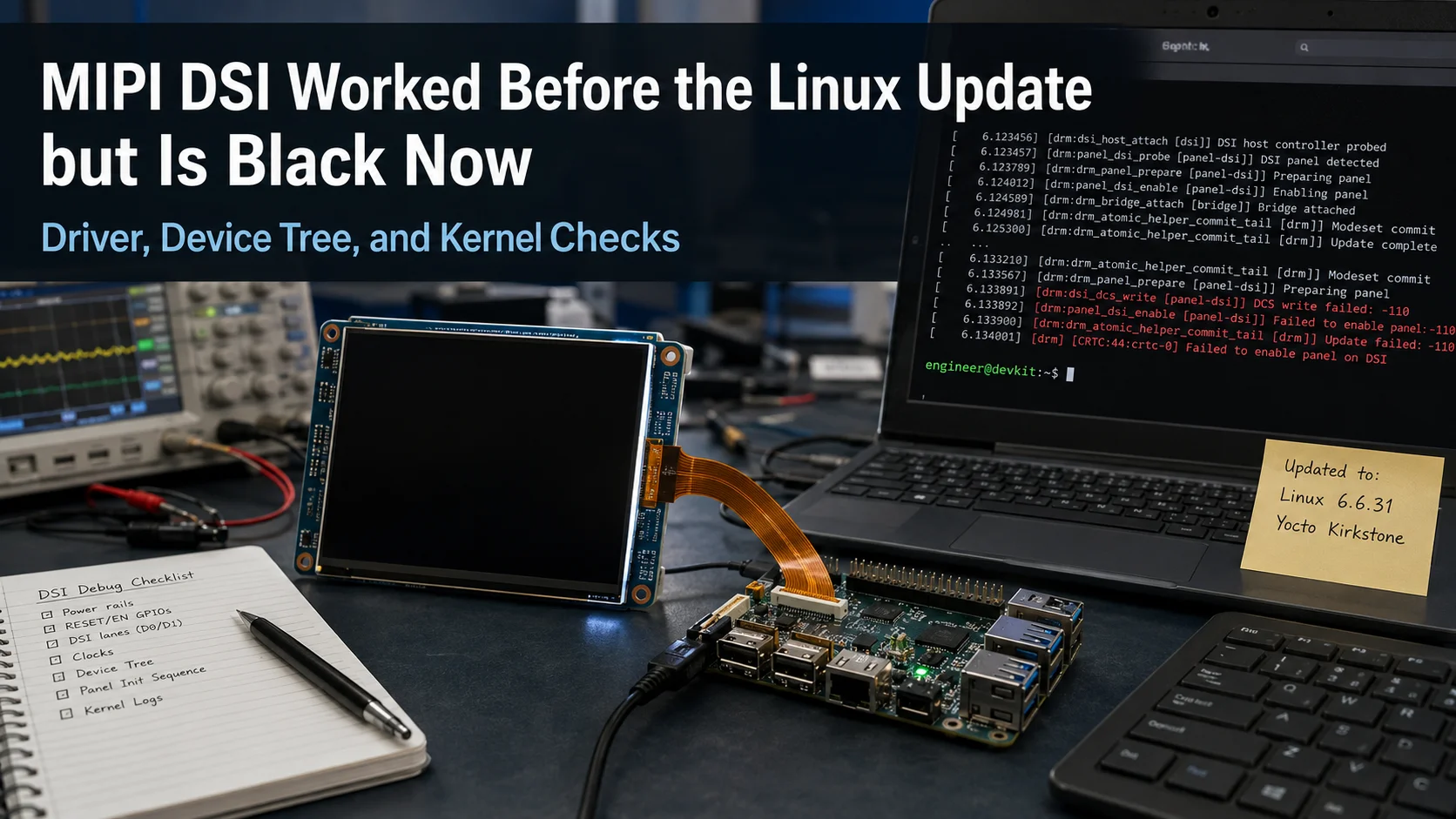
If a MIPI DSI display worked before a Linux kernel or OS update but now shows a black screen, start with the software changes rather than rebuilding the entire hardware bring-up process. Compare the previous and current kernel, panel driver, Device Tree configuration, DRM/KMS state, and boot logs first.
A previously working system makes a software regression a higher-priority suspect, especially when the same host, carrier board, display, and FPC remain unchanged. It does not, however, prove that every hardware layer is fault-free. The goal is to establish what changed and test that layer before modifying the display hardware.
Quick Check: Did the Update Really Trigger the Black Screen?
Before rebuilding drivers or editing Device Tree files, establish a known-good software baseline.
Record the previous working kernel version and the current version. Also note the Linux distribution or Raspberry Pi OS release, BSP or firmware changes, the panel driver version if it is external, the Device Tree overlay or DTB being used, and whether the display hardware changed at the same time.
Useful questions include:
-
Did the same display work immediately before the update?
-
Were the display module, FPC, carrier board, and power design unchanged?
-
Does the backlight still turn on?
-
Does touch still work?
-
Does booting the previous software image restore the display?
-
Was an external panel driver or custom Device Tree overlay part of the original configuration?
If the previous image still drives exactly the same hardware but the updated image does not, software should move to the top of the fault tree.
If the display has never worked on the current hardware, this is a different problem. Use a full MIPI DSI bring-up process instead of assuming that the operating-system update is responsible.
Build the Post-Update Fault Tree Before Reinstalling Anything
A black screen does not identify one specific failure. Use the symptom and system logs to determine which part of the Linux display stack stopped progressing.
| Symptom After Update | Check First | Couche probable |
|---|---|---|
| Black screen and panel driver absent from logs | Module availability and loading | Kernel driver |
| Module produces load errors | Kernel/module compatibility | External driver |
| Driver loads but panel is not attached | Device Tree and endpoint configuration | Board configuration |
| Panel binds but no usable mode appears | Mode, timing, DRM/KMS state | Display driver |
| Backlight works but image is black | Panel initialization and DSI path | Display pipeline |
| Image works but touch is missing | Touch driver, I²C/USB, Device Tree | Separate touch path |
| Old kernel works and new kernel fails | Compare software versions and logs | Regression |
Linux DRM treats the MIPI DSI host, DSI device, and associated driver attachment as distinct parts of the display pipeline. A loaded module is therefore only one piece of the evidence.
Test the Updated System Against the Known-Good Version
Compare Versions, Modules, and Logs
Start with evidence that can be compared between the working and updated systems.
Typical Linux checks may include the running kernel version, whether the expected panel module exists, whether it loads, its module metadata, relevant dmesg output, and the DRM connector or mode state where applicable.
Commands such as uname -r, modinfo, lsmod, and targeted dmesg filtering can help confirm what the updated system is actually doing. The purpose is not to collect large logs for their own sake. Look for the first meaningful difference between the known-good and failing configurations.
For example, if the old system shows the panel driver probing and the new system does not, investigate module availability before changing display timing. If both systems load the driver but only one attaches the panel, compare Device Tree and board resources next.
Use Rollback as a Diagnostic Test
Where the project allows it, booting the previous known-good image can be a useful A/B test.
If the same hardware immediately works again, that is strong evidence of a software regression. Rollback is useful for locating the problem, but it should not automatically become the permanent maintenance strategy for a production device.
The next question is which software dependency changed and how it should be maintained.
Root Cause 1: An External Panel Driver No Longer Loads
One of the first distinctions to make is whether the panel driver is already part of the target Linux kernel or is maintained as an external, out-of-tree module.
Linux kernel documentation states that external modules are built against a prepared kernel build environment containing the relevant configuration and headers. Kernel module versioning can also detect incompatible symbol versions and prevent a mismatched module from loading.
After a kernel update, check:
-
whether the expected .ko module exists for the running kernel;
-
whether modinfo can read the module;
-
whether it loads successfully;
-
whether the logs show unresolved symbols, version mismatch, signature, or other module errors;
-
whether the module was rebuilt for the updated kernel.
Do not assume that every kernel update requires every display driver to be rebuilt. An in-tree driver follows a different maintenance path from an external module.
If the evidence shows that an external module no longer loads, rebuilding or updating that module is more appropriate than changing the FPC, panel, or carrier board.
For projects evaluating this dependency before production, Kadi’s existing driver, driver modification, or new driver decision guide provides a related framework for assessing the panel-driver path before selecting a Raspberry Pi MIPI DSI display.
Root Cause 2: The Device Tree Overlay or Boot Configuration Changed
A panel driver can exist while the operating system no longer describes the hardware correctly.
On Raspberry Pi systems, the dtoverlay configuration mechanism loads Device Tree overlays that can enable kernel support for built-in or external hardware. Raspberry Pi documentation also uses Device Tree overlays to configure DSI display hardware at boot.
After an update, verify:
-
the expected overlay still exists;
-
the boot configuration still loads it;
-
the intended DSI controller is enabled;
-
the panel is connected to the correct endpoint;
-
regulator references remain valid;
-
reset and enable GPIO assignments are correct;
-
the backlight node still resolves correctly;
-
any required bridge is described;
-
touch resources are configured separately where applicable.
A valid Device Tree overlay does not replace a missing panel driver. Likewise, a valid panel driver does not prove that the Device Tree still points to the correct regulators, GPIOs, endpoints, or other board resources.
For Raspberry Pi-based devices, the 10.1-inch 1200×1920 MIPI DSI display for Raspberry Pi CM4/CM5 is a useful product-specific example because its published implementation includes a converter-board architecture plus Linux driver and Device Tree deployment steps. Those steps apply to that product implementation and should not be treated as a universal configuration for other MIPI DSI panels.
Root Cause 3: The Driver Loads, but the DRM/KMS or Initialization Path Changed
If the expected driver loads, move one level deeper.
Check whether the DSI host probes, whether the MIPI DSI device attaches, whether the panel driver binds, whether the expected connector or mode appears, and whether initialization reaches the required prepare and enable stages.
Linux DRM documentation separates MIPI DSI host registration, DSI-device registration, attachment, and display-driver integration. This means “the module loaded” and “the display pipeline initialized successfully” are not equivalent conclusions.
Compare the new system logs with the working version. Look for changes around:
-
panel probe;
-
DSI host attachment;
-
regulator or GPIO requests;
-
bridge initialization;
-
display modes;
-
panel prepare/enable;
-
backlight activation.
Avoid changing lane count, pixel timing, or initialization commands simply because the screen is black. If those parameters were unchanged and worked with the previous software image, first determine whether the updated stack is still reaching the same initialization stages.
Root Cause 4: The Display Works, but Touch Broke After the Update
Do not treat a touch failure as proof of a MIPI DSI video failure.
The display image and touch controller can use separate interfaces and software paths. A touch controller may communicate through I²C or USB and can have its own driver, interrupt, reset signal, and Device Tree configuration.
If the image works but touch disappears after the update, investigate the touch subsystem first. If touch still reports events but the display remains black, concentrate on the display pipeline.
Separating these two paths prevents an engineer from changing DSI parameters to solve an unrelated input-device regression.
When Should You Roll Back, Rebuild, Modify the Driver, or Change the Display Architecture?
The immediate fix should follow the evidence.
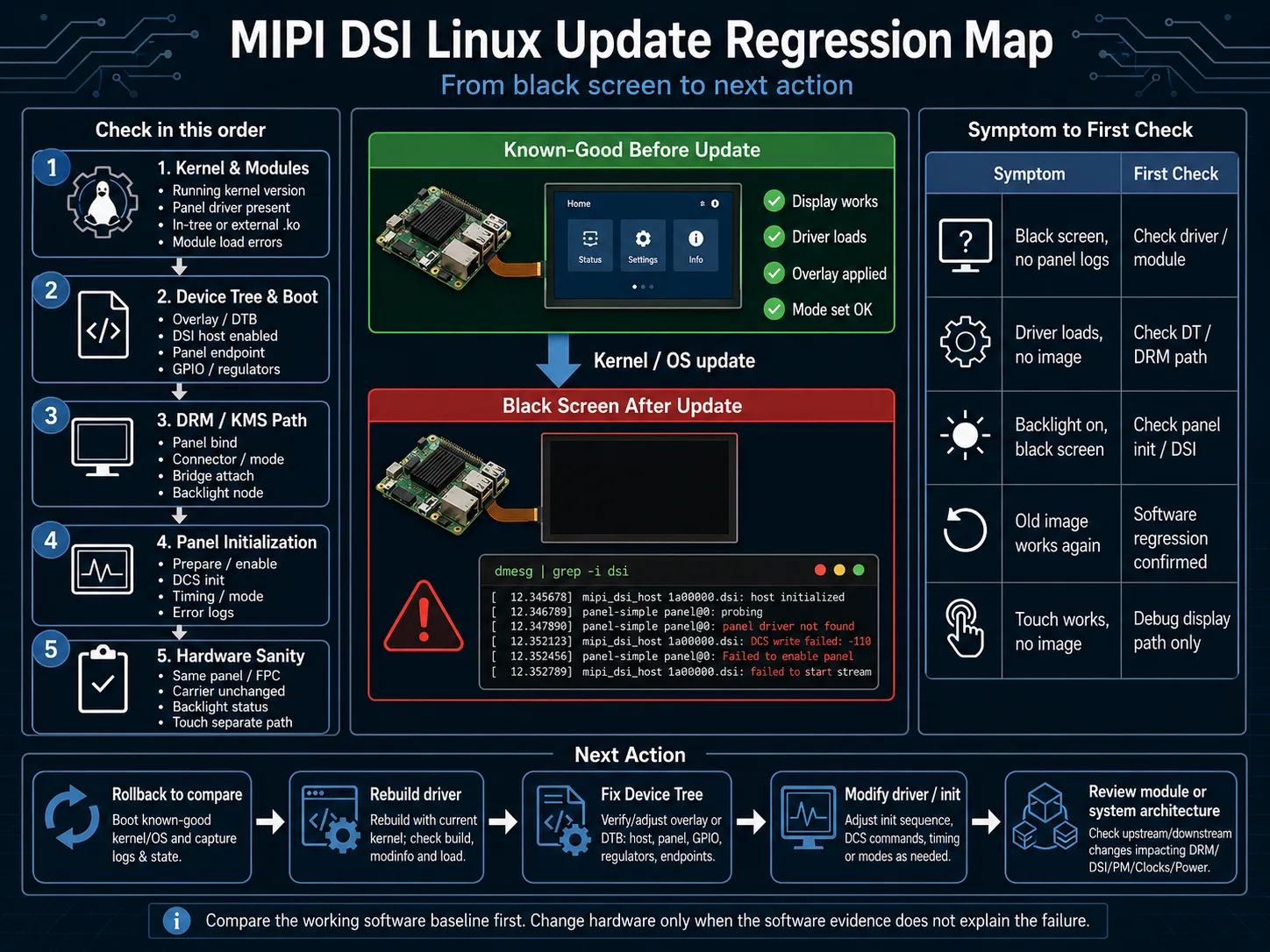
If the old kernel works and the new one fails, compare the software regression first. If an external panel module no longer loads, rebuild or update it for the intended kernel. If board resources or overlay entries changed, correct the Device Tree or boot configuration.
Driver modification becomes relevant when the available kernel driver is close to the required panel behavior but does not fully support its initialization or lifecycle requirements.
Hardware changes should enter the discussion only when the evidence points beyond software.
For example, if a new production host still supports the display electrically but requires a different connector arrangement, an FPC or adapter change may be more appropriate than replacing the display. If the new system requires conversion, power, or control circuitry that the original carrier did not provide, the PCBA architecture may need review. Mechanical changes matter when a suitable display cannot be integrated into the production enclosure or touch stack without additional adaptation.
For OEM projects that combine Linux, display, touch, interface electronics, and GUI requirements, embedded Linux display solutions represent a higher integration level than sourcing a bare TFT panel alone. Kadi Display’s current embedded category includes Linux- and FreeRTOS-oriented products and references LVGL and Qt development environments.
The key decision is whether the project has a one-time software regression or a structural maintenance problem. A display architecture that depends on an old BSP, an external driver, and several project-specific patches may deserve a different review than a system using a maintained driver path.
Which Integration Level Makes Sense for a Production Linux HMI?
A standard display or touch module can remain appropriate when the host interface matches, the display driver path is understood, and the project team can maintain the required Linux integration.
A modified or custom display assembly becomes more relevant when the remaining work is primarily around FPC layout, connector placement, touch integration, cover glass, or mechanical arrangement.
A modular HMI or embedded display approach becomes more relevant when the project increasingly depends on the interaction between the Linux platform, display, touch, converter or controller electronics, and user-interface software.
The decision should be based on the complete production architecture rather than on the MIPI DSI connector alone. A physical connector match does not establish driver support, electrical compatibility, or validated operation of the complete system.
Affichage Kadi currently organizes its offering across display modules, Raspberry Pi displays, embedded solutions, and customized display options rather than only bare TFT panels.
What Information Should You Prepare Before Requesting Display Integration Support?
If the problem cannot be resolved within the current software architecture, prepare enough information to define both the working and failing configurations.
Useful project information includes:
-
host processor, SoC, or SoM model;
-
board or carrier-board model;
-
display module part number;
-
target size and resolution if a replacement is being evaluated;
-
MIPI DSI lane configuration, if available;
-
Linux distribution or OS release;
-
previous working kernel version;
-
current failing kernel version;
-
whether the panel driver is in-tree or external, if known;
-
Device Tree or overlay information, if available;
-
exact symptom, such as black screen, backlight-only operation, or touch-only failure;
-
whether rollback restores the display;
-
available panel specification or pinout;
-
mechanical drawing if an FPC or module change is under consideration.
Provide the project information that can reasonably be disclosed. Full source repositories or complete PCB design files are not necessary to define the initial display requirement.
Conclusion
When a MIPI DSI display worked before a Linux update but becomes black afterward, diagnose the regression before redesigning the hardware. Confirm the update trigger, compare the working and current kernels, verify external modules, check Device Tree resources, inspect DSI/DRM binding, and determine whether panel initialization still reaches the expected state.
If the issue reveals a broader need for a different driver path, display module, FPC arrangement, or embedded display architecture, you can contacter Kadi Display with the host platform, display model, previous and current OS/kernel versions, MIPI DSI configuration if available, failure symptom, and relevant mechanical constraints to discuss suitable display options. Kadi’s contact page accepts technical questions and custom-display requests.
Questions fréquentes
Can a Linux kernel update cause a previously working MIPI DSI display to go black?
Yes, a software update can change parts of the display environment, including external kernel-module compatibility, Device Tree configuration, or DRM/display-driver behavior. If the same hardware works again with the previous image, compare the software versions and logs before modifying the display hardware.
Does a MIPI DSI panel driver need to be rebuilt after every kernel update?
Not necessarily. The answer depends on how the driver is integrated. External modules are built against a target kernel environment and may require rebuilding when the kernel changes, while an in-tree driver follows the kernel’s own build and update path.
Why is the backlight on after the update but the screen is still black?
Backlight operation does not confirm that the MIPI DSI display pipeline initialized correctly. Check panel-driver binding, Device Tree resources, DSI attachment, display modes, and panel initialization before concluding that the display module has failed.
Should I replace the display if rollback fixes the black screen?
Usually, rollback restoring the same hardware points first toward a software regression. Investigate the kernel, driver, Device Tree, and display stack before replacing the display. A different module becomes more relevant when the existing software or integration architecture creates an unacceptable long-term maintenance problem.
Précédent
MIPI DSI Works on the Development Board but Not on the Custom Carrier Board: A Step-by-Step Debugging Checklist
Suivant
MIPI DSI Power Sequencing and Reset Timing Check: Why a Compatible Panel Can Still Show a Black Screen
Laisser un commentaire

Derniers blogs et nouvelles
- Electronic Component Obsolescence Management for Industrial Displays: An OEM Guide
- How to Develop a Production Ready Custom Display Assembly TFT Module Touch Cover Glass FPC Bonding and Mounting
- 15 Pin vs 22 Pin Raspberry Pi DSI Connectors Cable Pinout and Compatibility
- Native MIPI DSI vs LVDS or HDMI Bridge: An OEM Display Architecture Decision Guide
- MIPI DSI Display Driver Development for Embedded Linux What Hardware Buyers Need to Confirm